

Like everyone else, I kept hearing how Claude is better than any other AI for vibecoding and starting a new side hustle. Using Claude can help you build a SaaS product, launch an online store, and turn your ideas into something that actually flows cash into your bank account. But none of that matters if Claude won’t let you verify your phone number and complete the sign-up process.
Trying to create a Claude account turned into one of the most draining sign-up experiences I’ve had in a while. Between endless verification loops and failed SMS codes, it honestly felt impossible to get in.
If you’re stuck right now, I completely get it. I went through the same thing and spent days trying to figure out whether my country was blocked, my mobile network provider was blocked, or if it was just a technical issue on Claude’s end. But eventually, I found a solution that actually worked for me and might work for you too. I finally got my account verified, logged in successfully, joined the world of Claude, and started waiting for its daily limits to unlock. In this blog post, I’ll share how you can identify the issue and overcome it.
The Problems I Ran Into
When I first tried signing up for Claude AI, I kept running into multiple issues. I got stuck when Claude requested phone verification. I entered my number and waited for the SMS code, but I didn’t receive anything. The verification page would just loop endlessly.
Sometimes the page would freeze after I entered my number. I refreshed the page, switched emails, tried different numbers, and even used incognito mode, yet the problem persisted.
At first, I thought it was just temporary server issues, but after trying again and again, I realized there were certain things triggering the blocks.
5 Things You Can Do to Fix Claude Sign Up & Phone Verification Problems
The solution to your issue depends on the kind of problem you are facing. So first, I’ll help you identify the error you might be encountering and explain how you can fix it.
The 500 Internal Server Error and How to Fix It
One of the biggest issues you can run into when signing up for Claude is the 500 login error, as constant attempts may trigger this error.
If this is what you’re struggling with right now, I recommend clearing your browser cache and cookies first. Then close all Claude-related tabs. This will give you a fresh start, and the login page should load properly again instead of repeatedly throwing the server error.
Switch Networks
Another thing that can surprisingly help is changing your internet connection. Instead of signing up using Wi-Fi, try switching to your mobile data.
This can reset whatever verification flag is causing the issue, since sign-up systems sometimes block certain IP addresses or network connections during security checks by mistake. Changing networks gives you a new connection and IP address, which can reset the verification process and help bypass temporary blocks or failed verification sessions.
Switch to a Different Mobile Network Provider
Some people online said they were able to solve the Claude phone verification issue by switching to a different mobile network provider. If you have another phone number from a different provider, try using it instead, as it may work for you on the first attempt.
The Cool-Down Period Matters
Requesting too many SMS codes too quickly is one of the biggest mistakes you can make, as the system may mistake you for a bot and block further verification requests. Instead of continuing to spam retries, stop completely and wait.
Giving it a cool-down period before trying again seems to help a lot. If you’ve failed verification multiple times, don’t keep hammering the button every few minutes. Wait a while before attempting again.
Use Anthropic’s Official Phone Verification Form
I realized that Claude isn’t working properly for every country and every mobile network provider. People outside the United States tend to face this sign-up and phone verification issue more often. So I went down the rabbit hole searching for a way to overcome this and finally discovered that you don’t need to sign up directly through Claude. Instead, you can join using Anthropic’s official phone verification form.
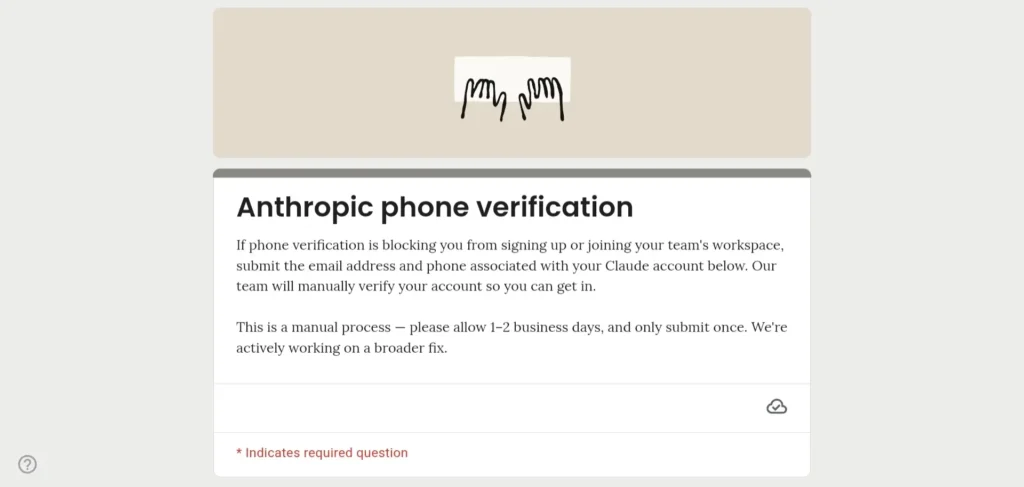
This form was officially created for people who are struggling with sign-up issues. All you need to do is fill in your email address, name, and phone number so the Anthropic team can manually verify your account and help you access it. This is basically what worked for me.
I’ll leave the link to the form here so you can use it.
Don’t expect the Anthropic team to send you an email confirming whether your account has been verified or not. I waited 3–5 days before checking myself. What I did was use my desktop browser instead of my phone, then I tried logging in using the same email address I used in the form submission. Surprisingly, it worked. They didn’t ask me for any further phone verification, and my email address was recognized immediately.
My Advice If You’re Still Stuck
If Claude phone verification keeps failing for you, based on my experience, I’d recommend not using your phone browser or app when signing up. Somehow, the process feels smoother when using a desktop browser. Fill out the form, wait three to five days, then log in through your desktop browser using your Google account. (Only log in with the same email address you used when filling out the form.)
If the issue still persists, as a last resort, try contacting support and explaining your issue in detail by providing screenshots and all the information they need to identify the problem. Ask them whether your country and mobile network provider are supported, as that may be the main reason why you’re being blocked.
Final Thoughts
Honestly, getting into Claude AI was way harder than it should have been. The verification loops and login errors were incredibly frustrating, especially when nothing seemed to work at first.
But after slowing down, avoiding repeated retries, switching devices, and properly using Anthropic’s official form, I finally got verified and gained access.
So if you’re currently stuck in the same loop, don’t panic yet. The method above is what finally worked for me, and hopefully, it saves you hours of frustration too.
